If you have used conditional formatting in Excel, three visualisations probably come to mind before anything else: color scales, in-cell data bars, and icon sets. CelesteCS Conditions now has all three as dedicated macros, each working inside a Conditional Rules Manager exactly like a Conditional Rule macro does.
On Confluence Cloud: all three macros are available as CelesteCS Conditional 3-Color Scale Cloud, Conditional Data Bar Cloud and Conditional Icon Set Cloud, with the same parameters described below.
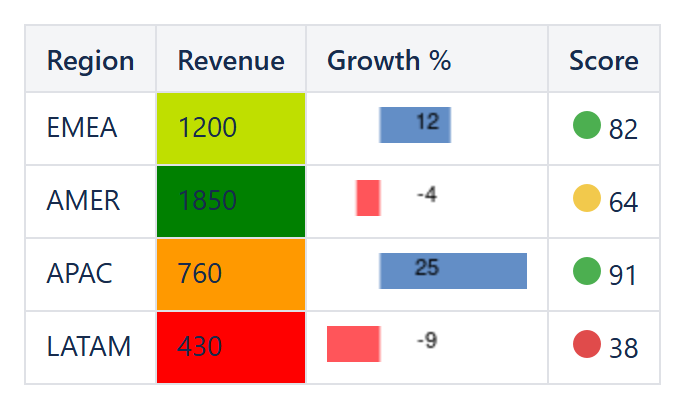
3-Color Scale: a smooth gradient between three points
Conditional 3-Color Scale shades every cell in a range along a gradient defined by a minimum, a midpoint and a maximum color – red–yellow–green being the classic choice, but any three colors work. The minimum and maximum can be the actual lowest/highest value in the range, an explicit number, or a percentage; the midpoint additionally supports Percentile, which defaults to the 50th percentile (the median) so the color break sits exactly in the middle of the data rather than the middle of the number line – useful when a range is skewed and the plain midpoint between min and max would leave most cells looking the same color.
Data Bar: an in-cell bar proportional to the value
Conditional Data Bar draws a bar inside each cell, its length proportional to where the value sits between the configured minimum and maximum. Negative values grow the bar to the left in a separate color instead of going negative-length – the same convention Excel’s own data bars use – so a column mixing gains and losses stays readable at a glance. Show value (on by default) keeps the original number visible next to the bar; turn it off for a purely visual sparkline-style column.
Icon Set: 3, 4 or 5 icons, up to four thresholds
Conditional Icon Set places one of 3, 4 or 5 icons – traffic lights, arrows, symbols, rating bars or pie gauges (9 icon styles in total) – next to each value depending on which side of the thresholds it falls on (two thresholds for a 3-icon style, up to four for a 5-icon style). Each threshold accepts a percentile, an explicit number, or a percentage; for a 3-icon style the defaults are the 33rd and 67th percentile, so a fresh set-up already gives a roughly even three-way split; Reverse icon order flips which end counts as “good” for metrics where lower is better, such as a ticket age or an error count.
Choosing between the three
As a rule of thumb: reach for a Data Bar when the raw numbers themselves are the point and a bar helps compare rows at a glance; a 3-Color Scale when you want a continuous heat-map feel across a whole range; and an Icon Set when three discrete tiers (good / warning / bad) is genuinely how the data should be read, and a compact icon says that faster than a color does. All three can be applied to a specific column range with the same Applies to syntax used across the rest of the plug-in, for example Table1.C:C, and all three are available in both Confluence Data Center and Confluence Cloud.
Try it in your own Confluence: CelesteCS Conditions for Confluence on the Atlassian Marketplace – free trial for Cloud and Data Center.
Conditions saves you time? A review on the Marketplace helps other teams find it.